

Reelfolio vs Jitter: which should designers use in 2026?
ComparisonsUpdated AUG 27, 20267 min
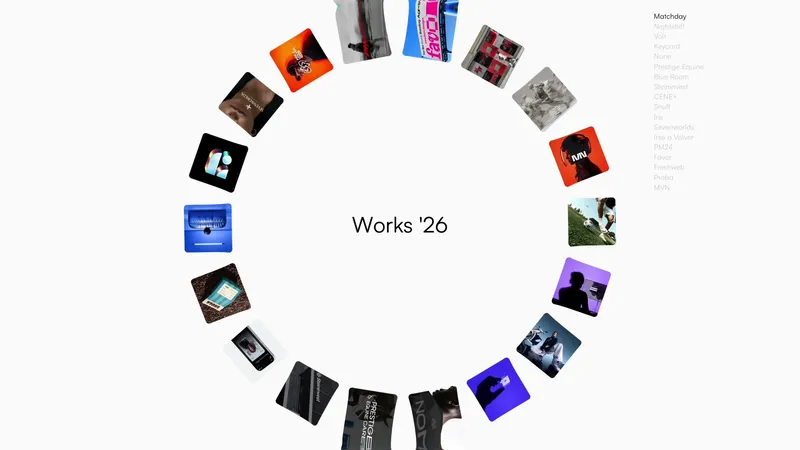
Jitter and Reelfolio promise the same outcome. Your design work, moving, ready to post. They get there in opposite ways. Jitter hands you a friendly motion editor and you animate every element yourself. Reelfolio hands you a finished, animated showreel the moment you drop your screenshots in. I use both, so this is the honest version, including where Jitter is clearly the better pick.
How we compared them
Both tools can make the same thirty second reel, so a feature count settles nothing. These five questions are what actually decide it, and two of them go Jitter's way.
- 01
Time to a finished reel
Both tools can produce the same thirty second reel. What differs is whether that takes four minutes or four hours.
- 02
Control over the motion
How much of the animation is yours to design, and how much was decided before you arrived.
- 03
Fit for portfolio work
A generic motion template has to be adapted. One built for showing design work does not.
- 04
What you can actually ship
Resolution, watermarks, aspect ratios and file types on the plan you would really be on.
- 05
Cost over a few years
What each costs per person per year, on the plan you would really be on.
Reelfolio vs Jitter at a glance
| Reelfolio | Jitter | |
|---|---|---|
| What it is | Showreel maker: drop media in, pick a template, export | Browser motion design editor with a timeline |
| Best for | Portfolio reels, case study clips, product showcases | Custom UI animation, logo motion, bespoke social clips |
| Learning curve | None, if you can pick a screenshot you can make a reel | Low for a motion tool, but you still keyframe by hand |
| Time to first video | Under a minute | An afternoon for a polished result |
| Portfolio-specific templates | 200+ built for showing design work | General motion templates, you adapt them |
| Full creative control over motion | You tune template settings, not keyframes | Keyframes, easing, and transitions are yours |
| Watermark-free on the free tier | Preview everything free, pay only to export | Free exports are 720p with a watermark |
| Max export quality | 4K, every aspect ratio | 720p free, 1080p on Pro, 4K above that |
| Where it renders | In the cloud, your laptop stays free | In the browser tab |
| Pricing model | $12/month, or $9/month billed yearly | Subscription, about $19 per editor per month |
What each tool actually is
Reelfolio
The reel is the starting point
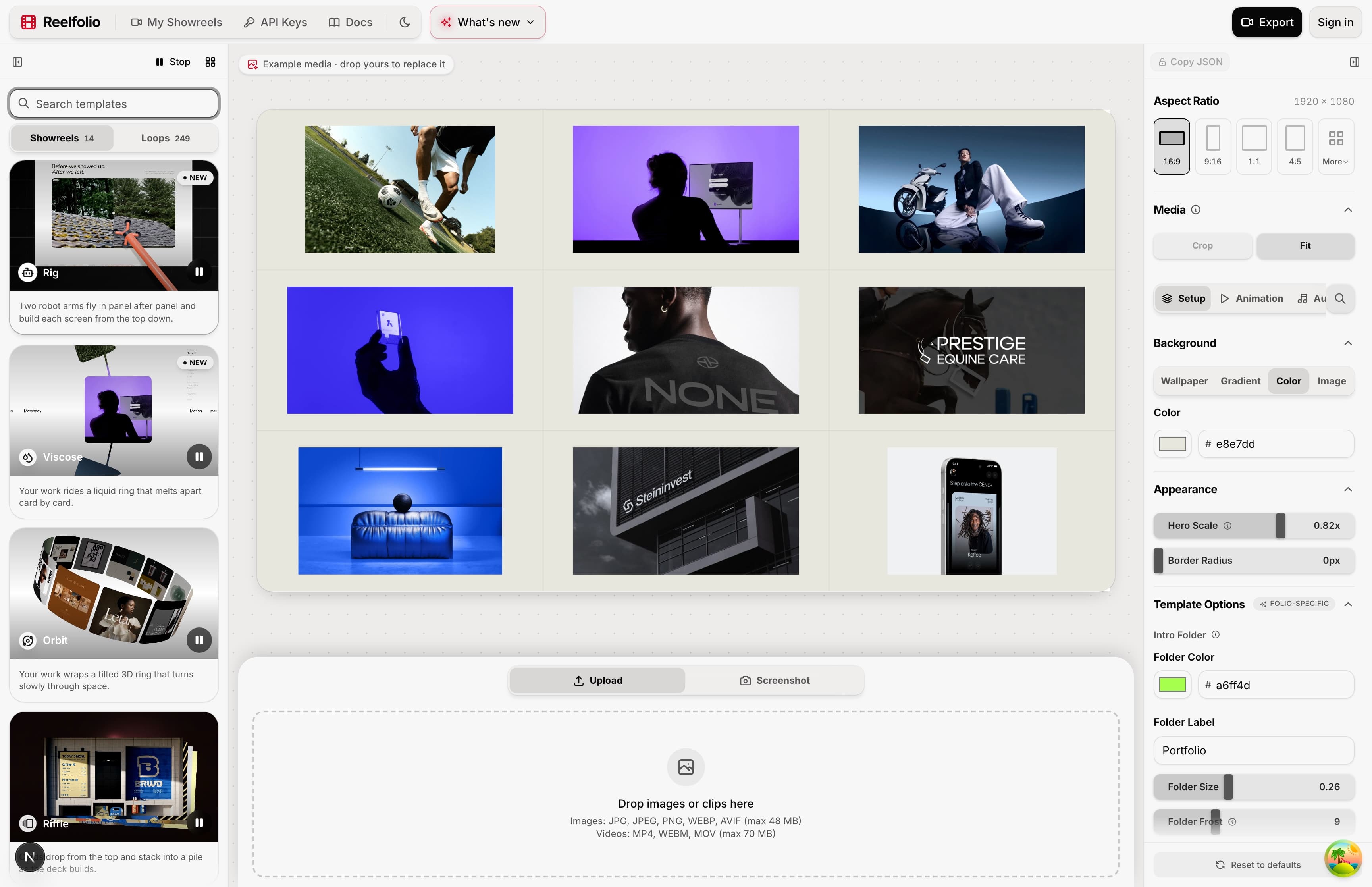
Reelfolio skips the editor entirely. You drop in a batch of screenshots or screen recordings, pick one of 200+ templates built for showing design work, and the animation is already done. Timing, easing, transitions, layout. Tweak the background, speed and format with a few sliders, then export at every ratio the platforms ask for, up to 4K.
Because every template shares the same media, flipping the whole reel to a different style is one click. Trying five versions takes about a minute here. In a timeline tool it takes a day, so nobody does it.
Jitter
Motion design without the After Effects tax
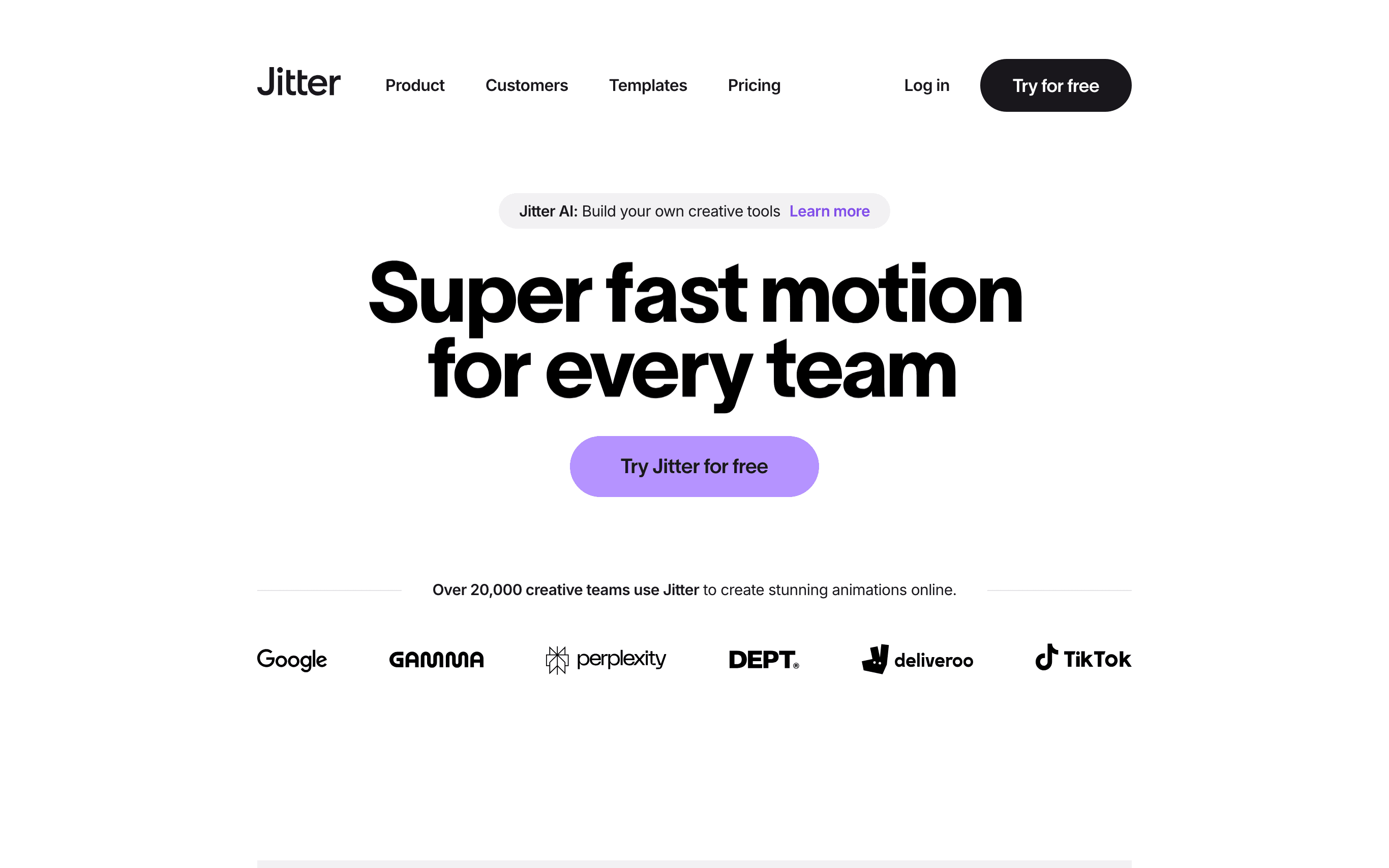
People call Jitter the Figma of animation, and for once the nickname is earned. You import frames straight from Figma, arrange elements on a canvas, and animate them with presets and a simplified timeline. It runs in the browser, your team can work in the same file, and it exports video, GIF and Lottie.
The key word is editor. Jitter takes the intimidating parts out of motion design, but the work is still yours: you place the elements, set the keyframes, pick the easings and time the transitions. That freedom is the point, and it's also what it costs you.
Where each one wins, and what it costs
Reelfolio
- A finished reel in under a minute, the animation design is already done
- 200+ templates made for one job: presenting design work beautifully
- Cloud rendering up to 4K in every ratio, including 9:16 for socials
- Free to build and preview in the browser, you pay at export
- Not a motion design tool, so you can't keyframe custom animation
- Built for showing existing work, not for animating illustrations from scratch
- No Lottie export, it produces videos, not production UI animation
$9/mo
Billed yearly at $108, or $12 month to month. No watermark, ever.
Jitter
- Full creative control: keyframes, easing and transitions are yours to design
- Excellent Figma import, your frames come in ready to animate
- Lottie and transparent exports for production UI animation
- Real-time team collaboration on shared files
- You still animate everything yourself, polish takes hours per video
- Free exports are 720p and watermarked, 1080p starts on Pro and 4K sits above that
- No portfolio-specific templates, you adapt generic motion projects
~$19/mo
Pro, per editor, billed annually
Who each one is for
Pick Reelfolio if
- You want a portfolio or product reel today, not a motion design hobby
- Your raw material is screenshots, mockups, or screen recordings
- You post to Dribbble, X, TikTok, or client decks and need 9:16, 1:1, and 16:9 from one project
- You would rather pay $108 a year than about $228 for a Jitter Pro seat
Pick Jitter if
- The animation itself is the deliverable, like a logo sting or UI micro-interaction
- You need Lottie or transparent exports for production
- You enjoy motion design and want full authorship of every keyframe
- Your team animates together in shared files
If you're weighing the heavier end of motion design instead, the same comparison against After Effects covers it. And the roundup of tools for a design portfolio video ranks Jitter against After Effects, Canva and CapCut as well.
“Reelfolio is insanely good. Every detail feels sharp and thoughtfully crafted.”

Irsyad
@irsyad
“Reelfolio is an essential part of our studio workflow. It helps us create polished videos quickly, without the usual editing overhead.”

4080 Studio
4080studio.com
Plenty of designers keep both
Jitter for the occasional bespoke animation, Reelfolio for every time finished work needs to go out the door in motion. They're not competing for the same hour of your week.
If your next task is a reel of your own screenshots, start with the tool where that reel already exists. You can always open Jitter later, once you know what you'd change.
Frequently asked questions
Read more
See all posts
ComparisonsUpdated AUG 27, 20267 min
Reelfolio vs After Effects: do you need a timeline to show your work?
After Effects can make anything. Reelfolio makes one thing in under a minute: a polished reel of your design work. An honest comparison with a table, real pricing, and a verdict.

ComparisonsUpdated AUG 27, 20266 min
Reelfolio vs Canva: which makes a better portfolio video?
Canva does everything. Reelfolio does one thing: turn your design work into a polished animated reel. A fair comparison with a feature table, pricing, and a clear verdict.

ComparisonsUpdated AUG 27, 20266 min
Reelfolio vs CapCut: the right way to put design work on TikTok
CapCut is built for creators cutting footage. Reelfolio is built for designers showing work. Comparison table, the 2026 price rise, and an honest verdict inside.
Pick a template. Watch it run.
Preview the motion, then send your screenshots to Reelfolio and ship the reel in about a minute.